Bypass Google Account Verification (FRP) Via SideSync
Get link
Facebook
X
Pinterest
Email
Other Apps
Bypassing Google account verification through sidesync is a short way to terminate previous Gmail. SideSync
is a great tool to share screen and data between your device and PC. It
helps you to bypass Google account verification, we send the file to
device from PC and SideSync get us to access the file and reset
successfully.
2. Download the APK file for your device to bypass the Google account verification through.Quick Shortcut Maker is an APk file that we need it in our mission, so just download it.
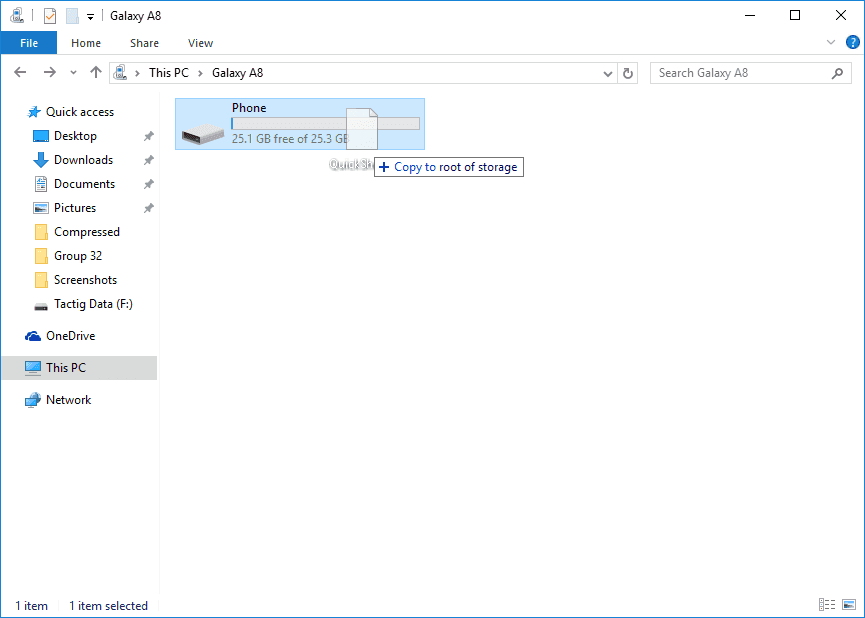
Connect your device to your PC. When it’s connected send the APK file(Quick Shortcut Maker) to your device.
Copying4. While your device is connected, you see a pop-up message on your device screen, double tap on Galaxy Apps.
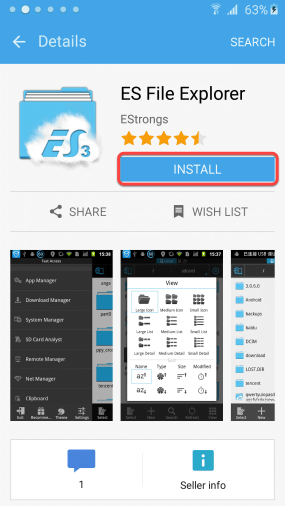
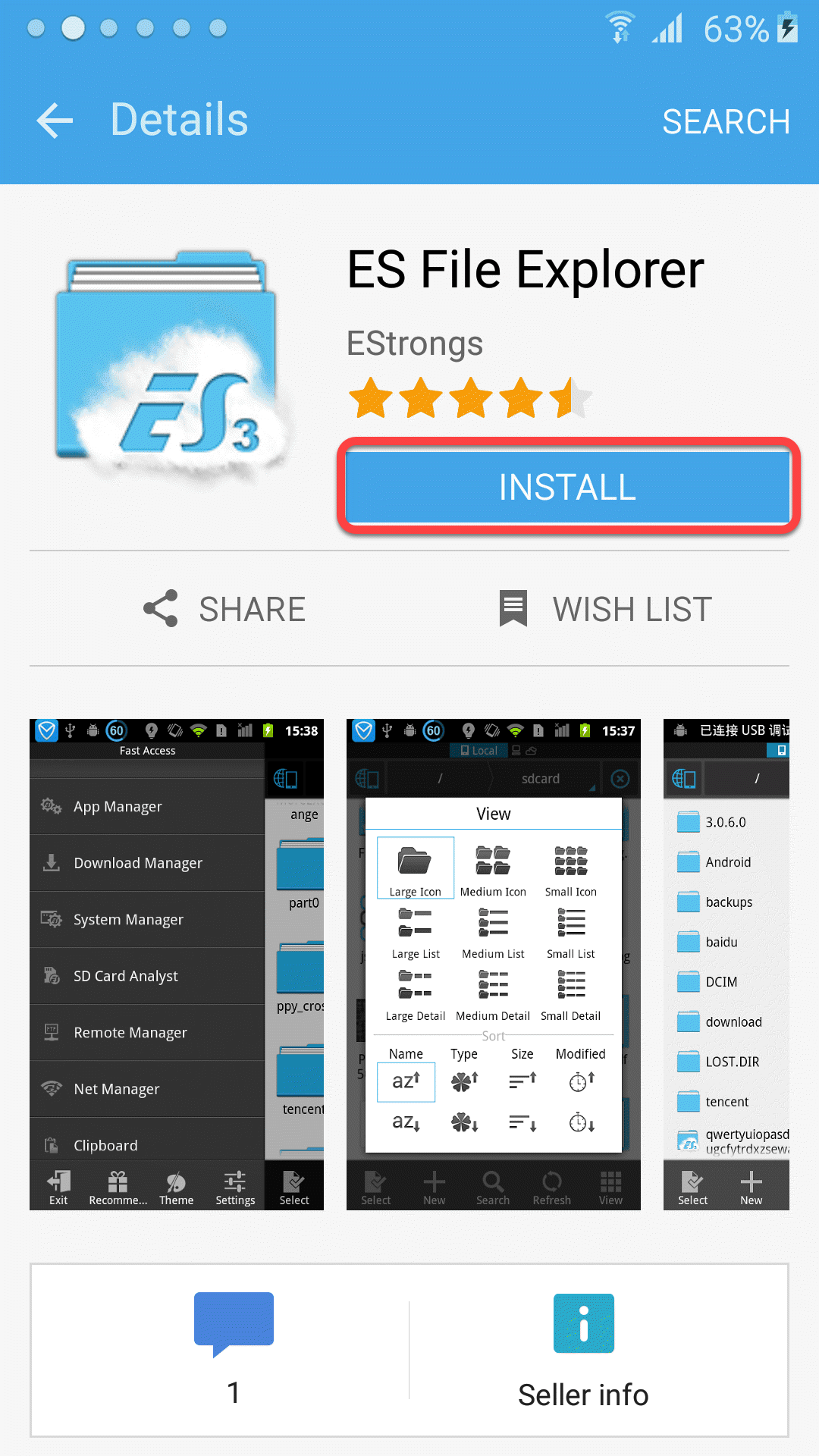
Galaxy-Apps5. Tap on Search and search ES File Explorer. your device will require Galaxy apps Account, if got it already so sign in and download the file or if you don’t, create a new one. When the download is completed openit.
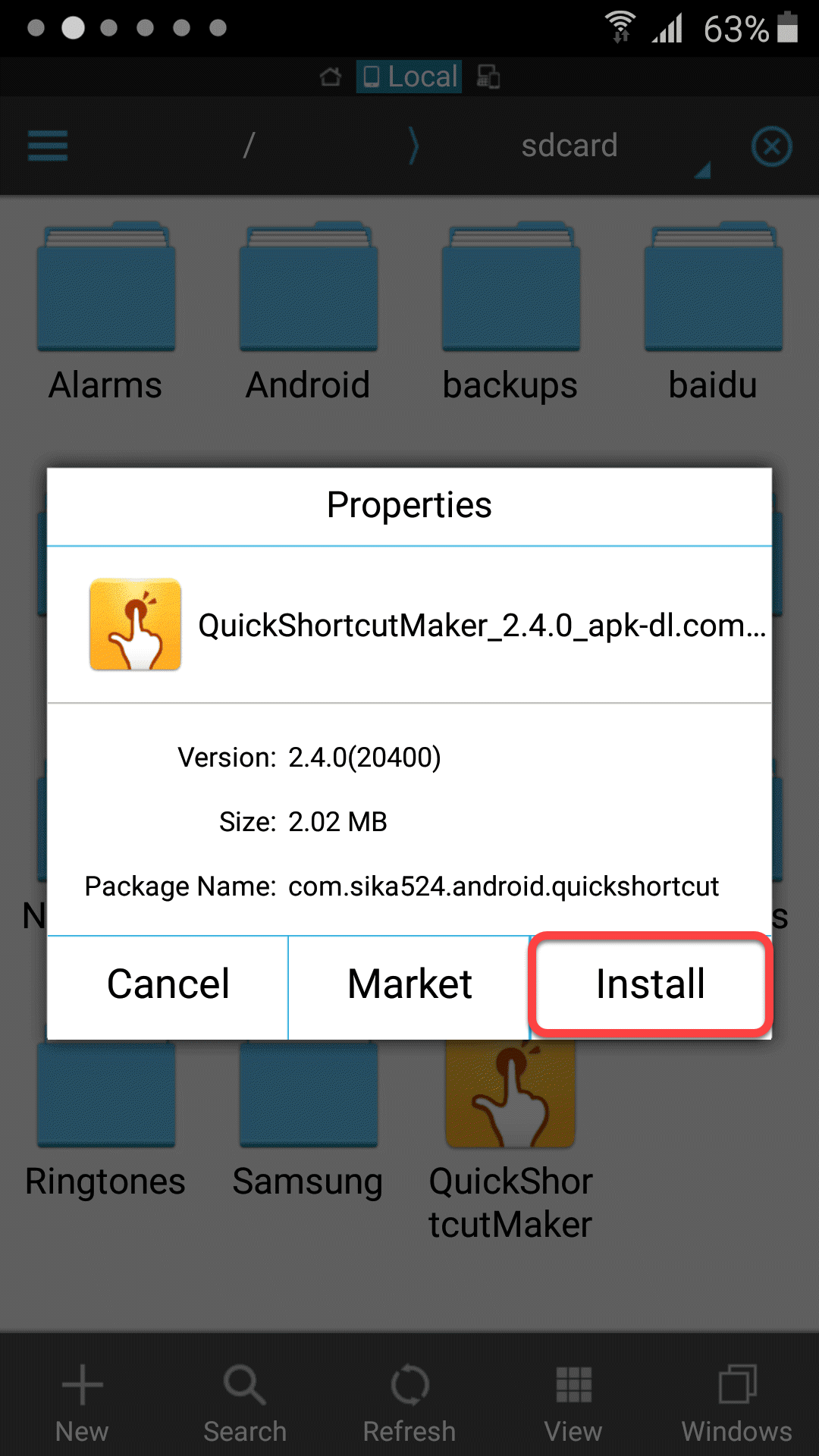
ES-File-Explorer6. Now find the APK(Quick Shortcut Maker) file that you’ve sent it before to your device. Install it, when the installation is done don’t tap on done, tap on Open.
Quick-Shortcut-Maker-Installation7. When you opened the Quick Shortcut Maker, search on the search bar of it Google Account Manager. It’ll appear then tap on that.
Google-Account-Manager8. Now tap on the fifth one ( Google Account Manager).
Fifth-One9. Press and hold on Try section.
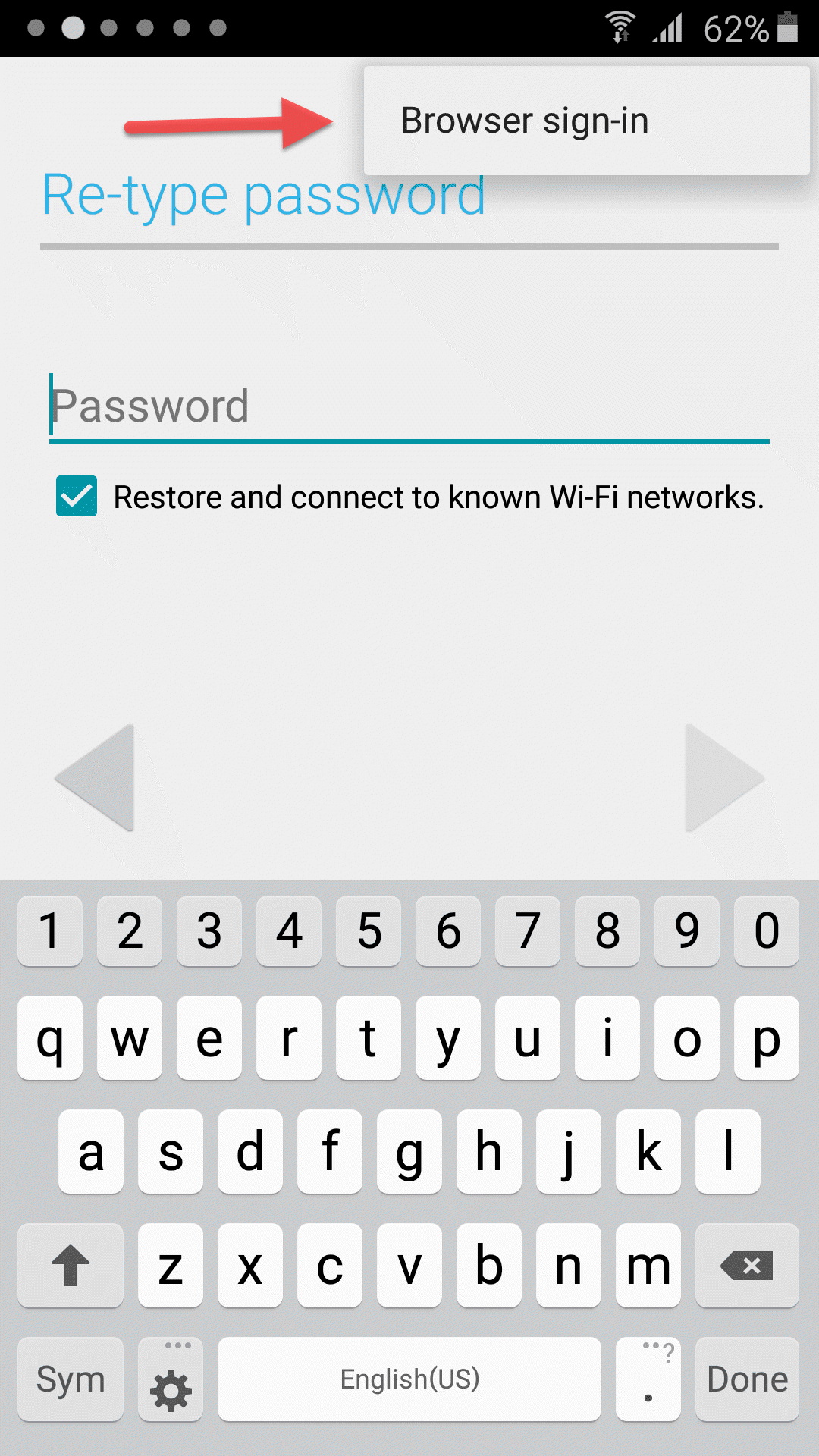
Try-Section10. Tap on three virtual dots at the top corner then it says Browser Sign-in. Tap it.
Try-Section11. Now Enter a new Gmail then get back to the Verification section then you’ll see it’s added.
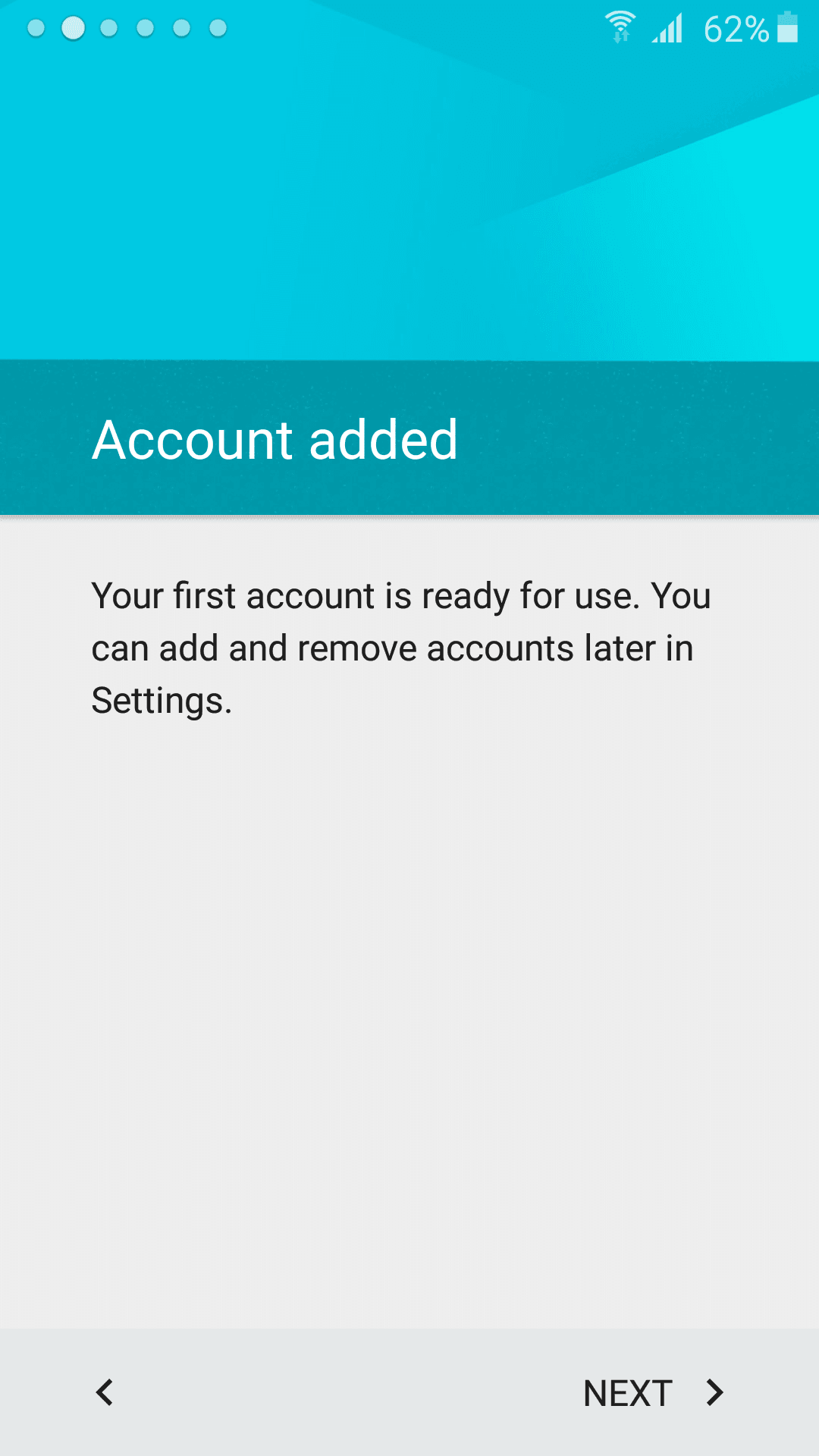
New-Gmail12. Congratulation you did it.
Account-AddedIt’s my recommendation to remember your Google account don’t forget it ever. If you do forget ask us we’ll reply.
STEP 1: First, we need to install adb on our computers, and for that, we will use a program called “ adb setup “, thanks to Snoop05 from XDA-Developers , this will enable adb and fastboot commands to work on our systems. It will also install necessary adb drivers. There are many ways to do that but what is more important about Snoop05’s solution is that we can use adb and fastboot commands system-wide, this means our old “command prompt” will turn to accept this commands, and no need to work in the “adb” folder like we used to before. Then install Qualcomm Diag port drivers on your system. STEP 2: On Lenovo phones to enable USB debugging, click “USB debugging (ADB)” under “USB computer connection” from the pop-up window when you plug the USB cable. On ZUK Z1, if Cyanogen Rom is installed, go to settings> about phone , and click “Build number” couple of times till you see “ you are a developer “ message. Then back to settings>D...










Comments
Post a Comment